

Connecting Street
If your agency runs on Street, you can connect it to Sayora. Your receptionist then answers callers from the properties you have on the market right now, and the enquiries your receptionist takes land in Street.
This is being switched on for agencies one at a time. If you don’t see Integrations in your settings yet, ask us.
What you need
Section titled “What you need”- A Street account.
- To be a Company Admin in Street, or to ask one: only a Company Admin can create an API token.
Creating the token in Street
Section titled “Creating the token in Street”-
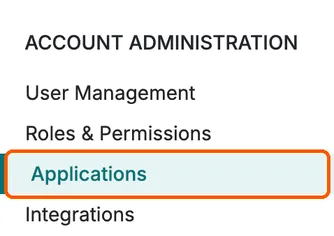
In Street, go to Settings. Scroll the menu on the left down to Account Administration and choose Applications.
-
Under Create new application, type a name you will recognise into Application Name, such as “Sayora”.
-
Under API Token Scope, choose Open API. Not Property Feed API: a Property Feed token can’t do what Sayora needs.
-
Fill in Contact Name and Contact Email Address with whoever looks after the connection at your agency. Street uses the address to tell you about changes to its API.

-
Press Create Application and copy the token. Street shows it once.
Connecting
Section titled “Connecting”-
In Sayora, go to Settings, then Integrations.
-
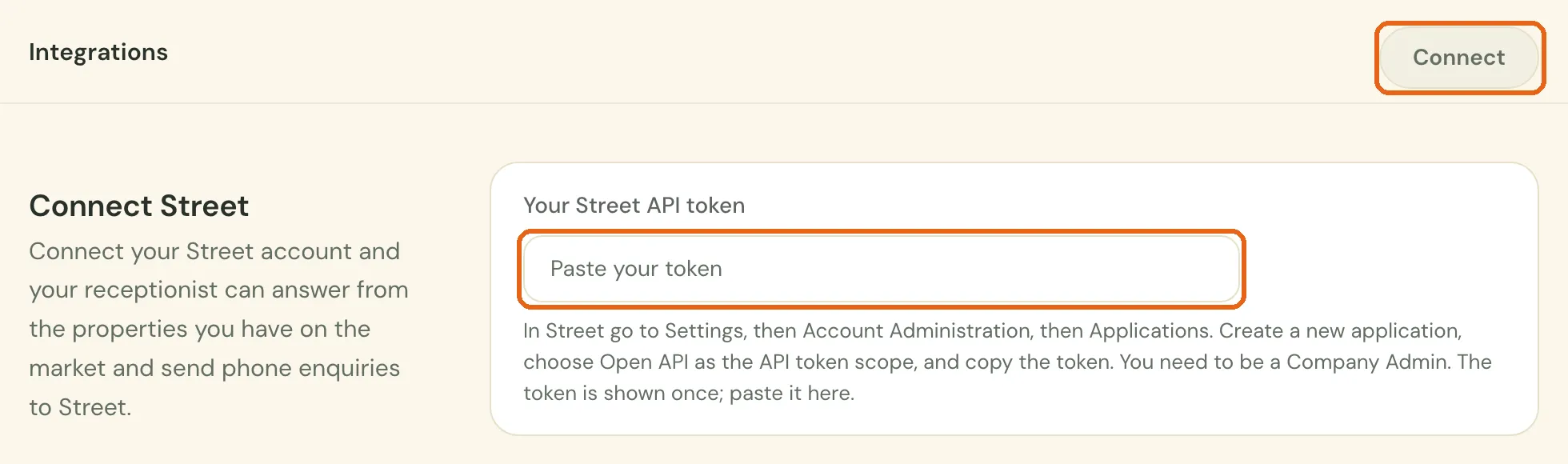
You’ll see Connect Street. (If Sayora offers you more than one system, you’ll see Connect your system first: choose Street.)
-
Paste the token into Your Street API token and tap Connect.
-
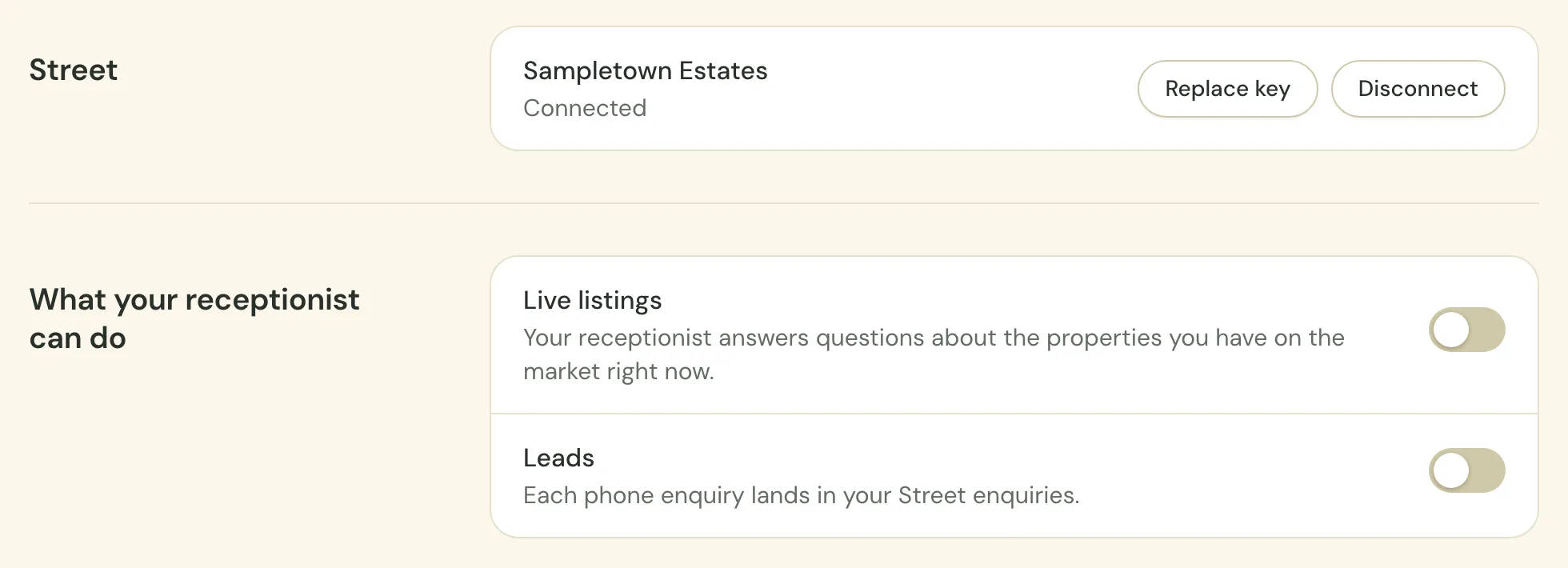
Sayora checks the token with Street and shows your agency’s name, with Connected under it.
If you chose from a list and picked the wrong system, tap Choose a different system.
If Sayora can’t connect, the screen says why. The ones you’re most likely to see:
- “This token can’t read your branches.” The token was made with the wrong scope. Create a new one with Open API.
- “That doesn’t look like a Street API token.” Something in what you pasted isn’t part of a token, such as a space or a line break. Copy it again straight from Street and paste the whole thing.
- “Street didn’t accept that token.” Street turned the token down, usually because part of it was missed or the application was deleted. Copy it again, or create a new one.
Once connected, each thing your receptionist can do has its own switch. Both start off.
Switching on live listings
Section titled “Switching on live listings”Turn on Live listings. Sayora loads your properties straight away, and your receptionist can answer questions like “have you got any three bedroom houses in Sampletown?” or “is the one on Example Road still for sale?”.
Your receptionist only hears about what you have on the market: properties for sale, under offer, sold subject to contract, to let or let agreed. A property you have marked low profile, kept off your website feed, archived, or set to publish on a later date is left out. Callers are told the address you publish, never the full address. If your agency has more than one branch, Sayora reads the properties of every branch the token can see.
Listings refresh every hour. A price change or a new instruction reaches your receptionist within about an hour.
If your listings were already reaching Sayora through your website’s property feed, switching on Live listings replaces that feed, so your properties aren’t listed twice. Turning Live listings off removes your Street properties from Sayora, and your receptionist stops answering from them. Turning it off, or disconnecting, does not bring the website feed back; ask us and we’ll restore it.
If Sayora can’t load your properties, Live listings stays off and the screen says so. Try again in a minute.
Sending enquiries to Street
Section titled “Sending enquiries to Street”Turn on Leads on the Integrations screen. From then on, a call where your receptionist took a caller’s details lands in your Street enquiries, usually within a few minutes of the call ending.
Each enquiry carries the caller’s name, phone number and email address when they gave one, a short summary of the call, and the caller’s answers to the questions you set under Ask on the call. It is marked as coming from Sayora. When the caller asked about one particular property, and Live listings is on, the enquiry is attached to that property. When a caller asks for a viewing or a valuation, Sayora also marks the enquiry in Street as a viewing request or a valuation request. A caller who gave no name is filed as “Caller”.
Street files each enquiry under a contact and keeps an email address on each one, so once Leads is on your receptionist asks each caller who leaves their details for an email address. Your receptionist asks once. If one of your questions under Ask on the call asks only for the caller’s email address, in a common wording like “Email address” or “What’s your email?”, it is asked in place of Street’s email question, still once, and the note on that question isn’t used while Leads is on. Any other question, like “Email or phone number”, stays as you wrote it, beside Street’s. A caller who has none, or would rather not give it, is not pressed; the enquiry is still sent, and Street attaches it to the contact who already has that phone number, if there is one. If the caller gave no address, Sayora also looks their number up in your Street contacts and puts the address on record on the enquiry, as long as exactly one contact has that number. A caller who withheld their number is sent with the callback number they gave.
A call that ends with a booking in your diary is sent to Street the same way.
On each lead in Sayora you’ll see Sending to Street while it’s on its way and Sent to Street once it has landed. If Street can’t be reached, Sayora tries again, up to five tries in all over about two hours. If Street turns the enquiry down, it isn’t tried again. Either way, the lead then says Not sent to Street, and you’ll want to add it to Street by hand.
The recording and the transcript are never sent to Street.
Changing or removing the connection
Section titled “Changing or removing the connection”- Replace key: paste a new token into New API key, for example after deleting the old application in Street. The new token must come from the same Street account.
- Disconnect: Sayora asks you to confirm, then the connection, the listings and enquiry sending stop. The token stays valid until you delete the application in Street.
If Street stops accepting the token
Section titled “If Street stops accepting the token”If the application is deleted in Street, or the token stops working for any other reason, the Integrations screen says so in red the next time Sayora reaches Street: within the hour while Live listings is on, or, while Leads is on, at the next enquiry.
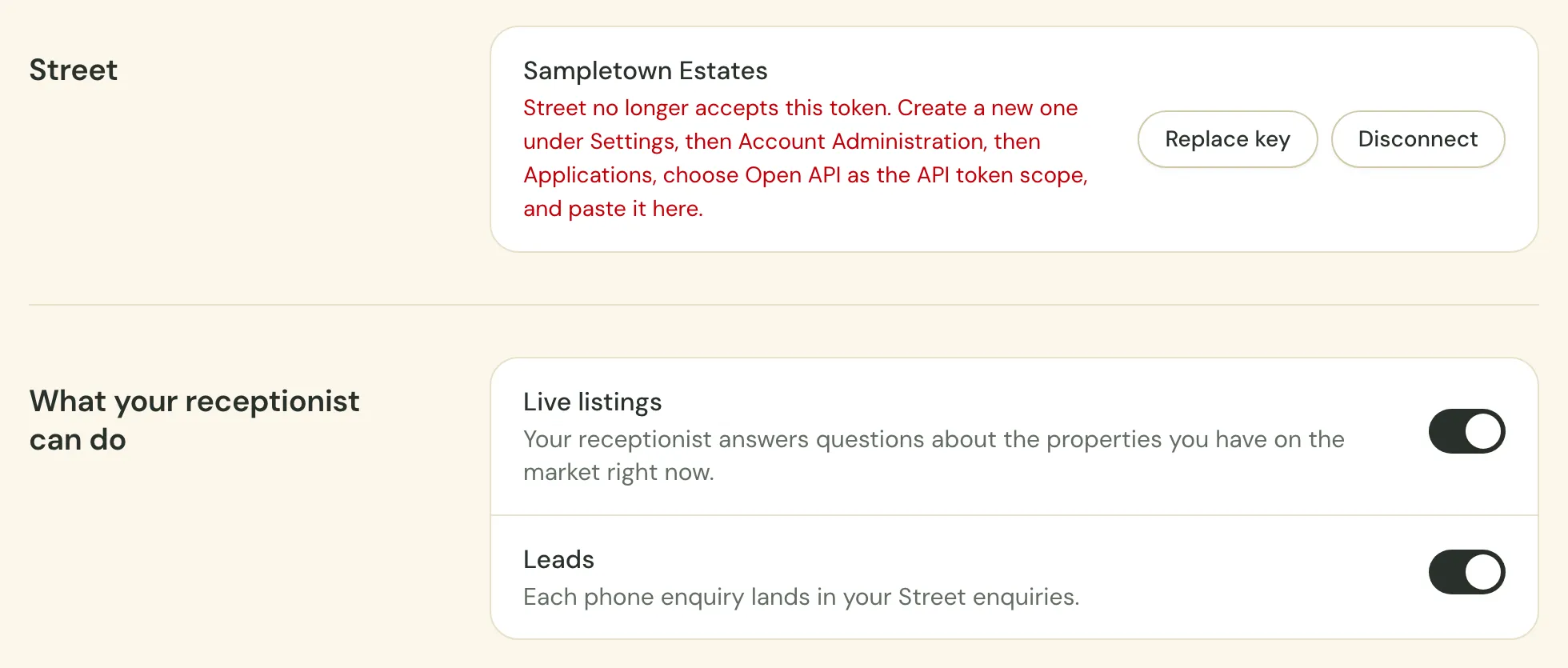
Until you fix it:
- your receptionist keeps answering from the last listings Sayora loaded, but they stop refreshing;
- new enquiries wait, and their leads show Sending to Street;
- your receptionist stops asking callers for an email address.
Create a new token in Street the same way as before and paste it in with Replace key. Enquiries from the last day that were waiting are then sent. Older ones show Not sent to Street; add those by hand.