

Connecting MotorDesk
If your dealership runs on MotorDesk, you can connect it to Sayora. Your receptionist then answers callers from the cars you have in stock right now.
This is being switched on for dealers one at a time. If you don’t see Integrations in your settings yet, ask us.
What you need
Section titled “What you need”- A MotorDesk account on the Growth plan or above.
- API access switched on for your account. MotorDesk’s team does this; ask MotorDesk support to enable API 2.0 if you haven’t already.
- About five minutes. You create a key in MotorDesk, then paste it into Sayora.
Which scopes to tick
Section titled “Which scopes to tick”A MotorDesk key only does what its scopes allow, so you choose them when you create it. Tick the rows for what you want Sayora to do. Leave everything else unticked.
| Scope | Tick | What it is for |
|---|---|---|
| Meta | Read | Always. Sayora checks the key with it. |
| Business | Read | Always. Sayora shows your dealership’s name. |
| Reference | Read | Always. Your booking types and staff list. |
| Webhooks | Read and Write | Recommended. MotorDesk tells Sayora about a change the moment it happens. Without it, changes still reach Sayora, just more slowly. |
| Listings | Read | Live stock. |
| Vehicles | Read | Recommended for live stock, together with Webhooks. A sold car drops off within about five minutes instead of about half an hour. |
| Leads | Read and Write | Leads and bookings. |
| Lead Notes | Write | Leads and bookings. |
| Lead Messages | Write | Recommended for leads. The enquiry shows in the lead’s Enquiry panel. Without it, it goes under Notes. |
| Contacts | Read | Leads and bookings. A caller who is already a contact is matched to it. |
| Lead Vehicles | Write | Optional. Every car the caller asked about is listed on the lead, up to five. Without it, one car at most. |
| Appointments | Read, Write and Delete | Bookings. |
To use everything, tick all of them. MotorDesk calls bookings “Appointments”.
Creating the key in MotorDesk
Section titled “Creating the key in MotorDesk”-
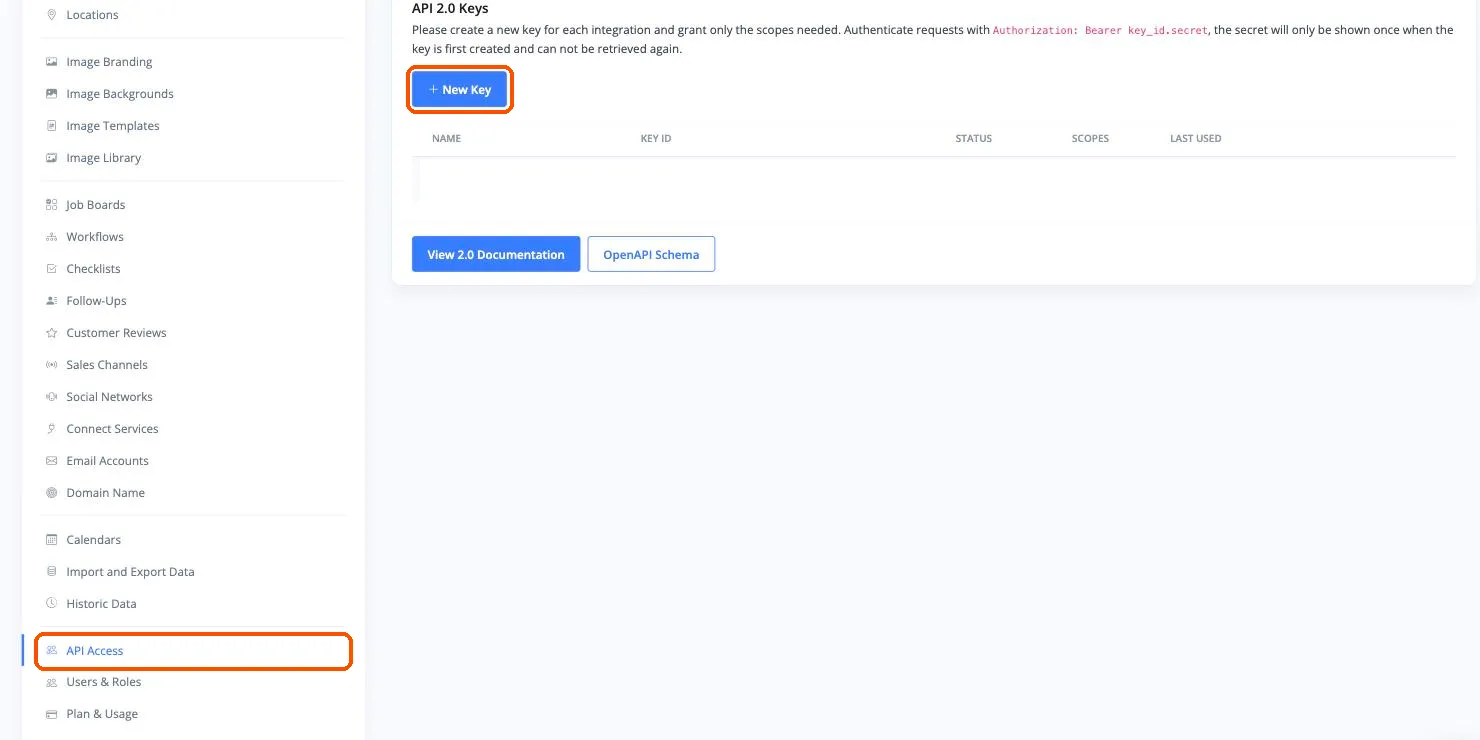
Sign in to MotorDesk. Open the Business menu at the top and choose Details, then scroll the menu on the left down to API Access. You can also go straight to my.motordesk.com/business/api.
-
On the API 2.0 tab, press New Key.
-
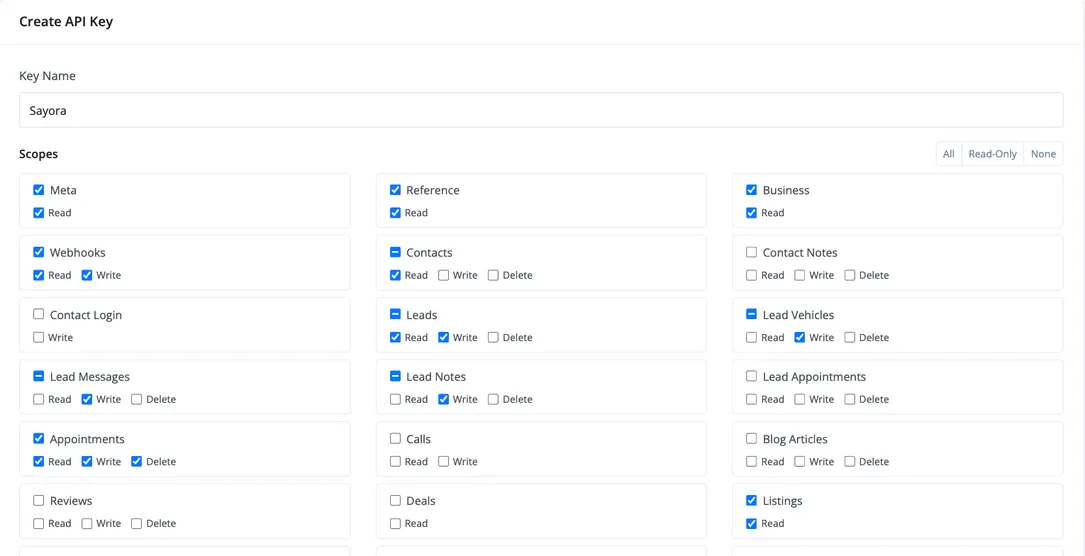
Under Key Name, type a name you will recognise, such as “Sayora”.
-
Under Scopes, tick the scopes from the table above. Each scope has its own Read, Write and Delete boxes; tick only the ones the table names.
-
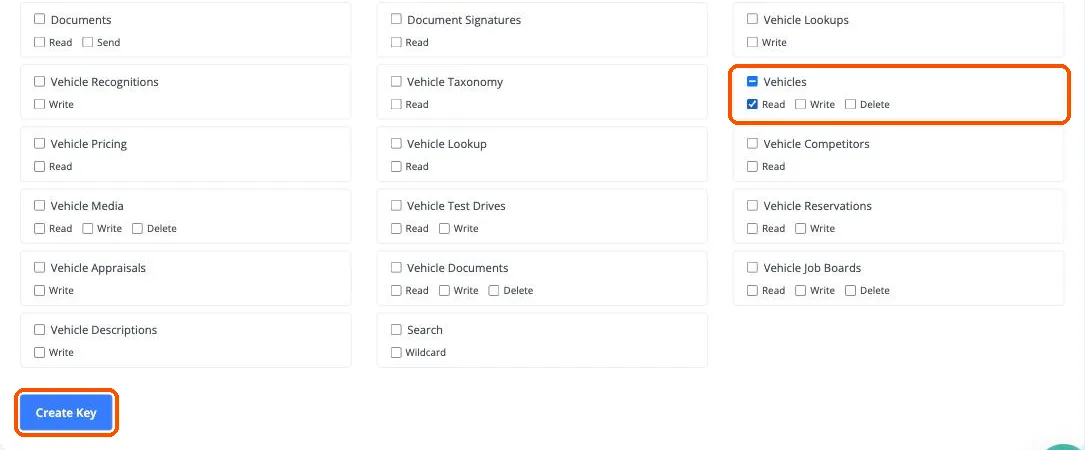
Scroll down. Tick Vehicles (Read) if you want sold cars to drop off quickly, then press Create Key.
-
MotorDesk shows the key once, in the form key_id.secret. Copy all of it. If you lose it, delete the key in MotorDesk and create a new one.
If you add a scope to a key that is already connected, Sayora notices it within a day. For Webhooks or Vehicles, use Replace key with the same key to start the instant updates; that also picks up any other new scope straight away. If you didn’t keep the key, create a new one with every scope you need and use that instead.
Connecting
Section titled “Connecting”-
In Sayora, go to Settings, then Integrations.
-
Under Connect your system, choose MotorDesk.
-
Paste the key into Your MotorDesk API key and tap Connect at the top.

-
Sayora checks the key with MotorDesk and shows your dealership’s name. Then turn on what you want your receptionist to do.
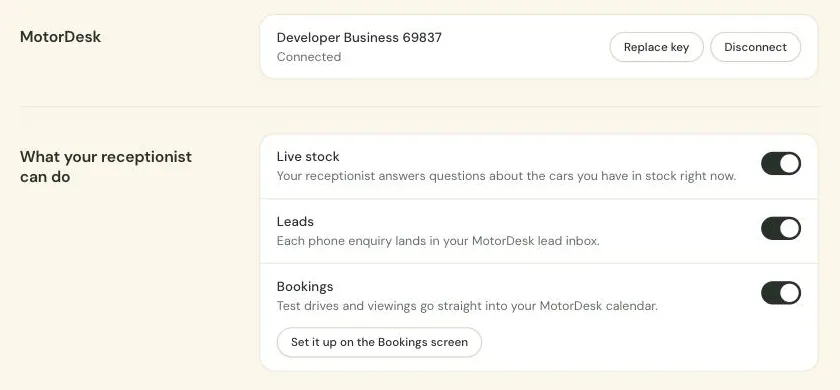
If a switch won’t turn on, the screen names the scopes the key is missing. Create a key with those as well as the ones you ticked before, and use Replace key.
Switching on live stock
Section titled “Switching on live stock”Turn on Live stock. Within a minute your cars are loaded, and your receptionist can answer questions like “have you got an automatic BMW under fifteen thousand?” or “is the white 3 Series still for sale?”.
When a car sells or a price changes in MotorDesk, your receptionist knows within about five minutes, or within about half an hour if the key doesn’t have Vehicles (read).
A caller can also give a car’s registration, spaced or not, and your receptionist finds that car whether it is for sale, reserved or sold.
Your receptionist reads out the year, make, model, fuel, gearbox, colour, mileage and price. Your receptionist doesn’t quote finance figures.
Sending enquiries to MotorDesk
Section titled “Sending enquiries to MotorDesk”Turn on Leads. From then on, every call where your receptionist took a caller’s details lands in your MotorDesk lead inbox, usually within a minute of the call ending.
Each lead carries the caller’s name, number and email, and the enquiry itself: the call summary, whether they asked to be called back today, and the answers to your own lead questions. With Lead Messages (write) the enquiry shows in the lead’s Enquiry panel, the way an enquiry from your website does; without it, it goes under Notes.
Each lead gets a MotorDesk lead type. A lead your receptionist made while booking an appointment into MotorDesk is a Test Drive for a test drive and an Enquiry for anything else. Every other lead is a Viewing or a Valuation when that is what the caller asked for, a Callback when your receptionist took a message for someone to call them back, and an Enquiry otherwise. When the caller asked about one particular car, that car is attached to the lead. If they asked about several and the key has Lead Vehicles (write), each car Sayora could identify is attached, up to five. The recording and the transcript are never sent.
If a caller is already a contact in MotorDesk, the lead is attached to that contact. Sayora never creates contacts.
On each lead in Sayora you’ll see Sending to MotorDesk while it’s on its way and Sent to MotorDesk once it has landed. If MotorDesk could not take it, Sayora tries again a few times. If it still can’t land, or MotorDesk refuses it outright, the lead says Not sent to MotorDesk and you’ll want to add it by hand. Your lead texts and emails carry on as normal either way.
Booking into MotorDesk
Section titled “Booking into MotorDesk”Turn on Bookings under Integrations, then go to Bookings in your settings and tap Connect beside MotorDesk. If Google Calendar or cal.com is already connected, tap Switch beside MotorDesk under Calendar instead; Sayora disconnects the other calendar for you.
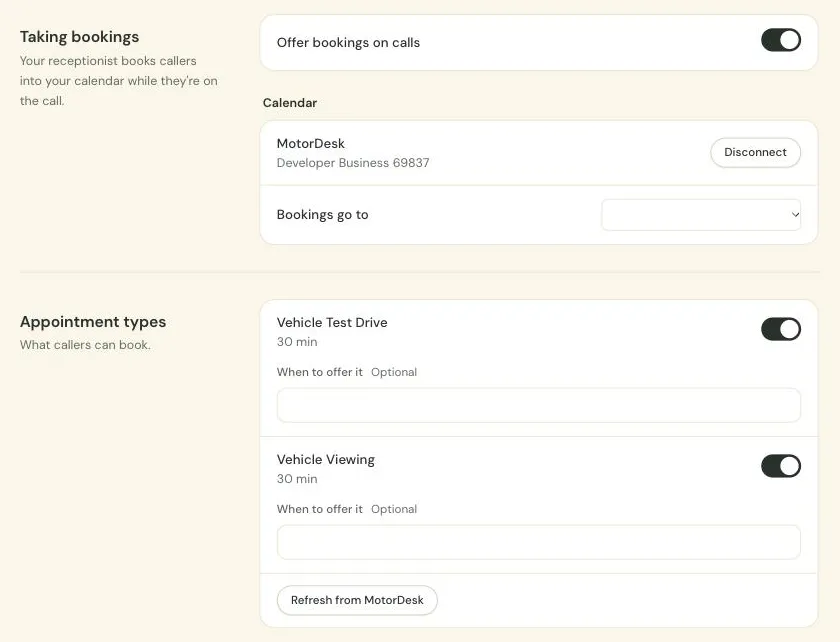
Pick who appointments are assigned to under Bookings go to; it saves as you pick. Then, under Appointment types, switch on the booking types callers may book; each switch takes effect straight away. If you like, add a note under When to offer it saying when your receptionist should offer each; it saves when you move on from it. Only booking types that are switched on in MotorDesk are listed; Refresh from MotorDesk re-reads them.
From then on, when a caller wants a test drive or a viewing, your receptionist offers the times MotorDesk has free and books straight into your MotorDesk calendar. The appointment is attached to the caller’s lead when Leads is on (with Leads off, no lead is created), and to the car they asked about when there was no doubt which one.
If you remove or move an appointment in MotorDesk that is in the next two weeks, Sayora notices within about an hour, so a caller ringing back hears the right thing. Sayora doesn’t send MotorDesk’s own appointment confirmation.
Times use the time zone set in Sayora. If MotorDesk is set to a different zone, the Bookings screen says so; set both to the same zone.
Replacing or removing the key
Section titled “Replacing or removing the key”- Replace key: paste a new key into New API key and tap Replace key at the top, for example after revoking the old one in MotorDesk.
- Disconnect: the connection, the stock, lead sending and MotorDesk bookings all stop. Sayora removes its webhook subscription from your MotorDesk account. The key stays valid until you revoke it in MotorDesk.
If MotorDesk stops accepting the key, the Integrations screen says so and your receptionist keeps answering from the last stock Sayora loaded, so replace the key or turn Live stock off. Lead texts and emails carry on as normal, and leads from the last day that could not be sent are retried once the key works again.